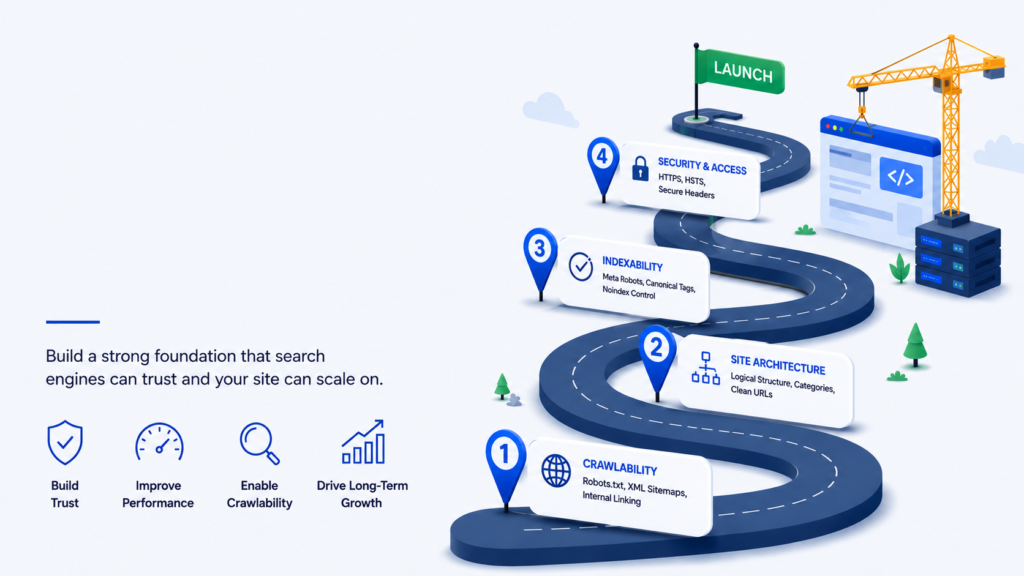
You publish a new page. You did the keyword research, tightened the title, wrote a decent meta description, and clicked “Request indexing.” Two weeks later you search for it and find nothing.
I’ve been there, and it’s maddening. But a page can’t rank if Google can’t reach it, read it, or decide it’s worth keeping, and one of those three is almost always the problem. Below, I’ll show you how to work out which one, and what to do about it. It’s the same, whether you are a small blogger or a large shop.
It’s a good idea to go through a technical SEO audit checklist before you get started digging. It will find the typical offenders: server issues, faulty internal links, chain of redirects, improper robots.txt, flawed sitemap, duplicate pages, and anything improperly set to noindex. Do those first and the rest of this guide is easy.
Table of Contents
- What Are Crawl Errors ?
- Crawling vs. Indexing: Not the Same Thing
- The Most Common Crawl Errors and How to Fix Them
- Robots.txt and Noindex: Are You Blocking Google by Accident?
- XML Sitemaps
- Internal Linking
- Duplicate Content and Canonical Conflicts
- JavaScript Rendering Problems
- Crawl Budget
- Mobile-First Indexing
- A Quick Checklist: Why Isn’t My Page Indexed?
- Keeping Your Crawl Health in Shape
- Conclusion
- FAQs
What Are Crawl Errors ?
A crawl error simply means Googlebot tried to load a page on your site and couldn’t. Maybe the URL is broken, the server timed out, or an old robots.txt rule is in the way.
They come in two kinds:
- Site errors hit the whole site, like DNS failures or server timeouts.
- URL errors hit a single page, like a 404 or a bad redirect.
The hard part is how quiet they are. You won’t see traffic fall off a cliff. Rankings just slip a little, new pages go nowhere, and a few months later you’re wondering what happened. Even a slow server costs you more than a few annoyed visitors: it cuts into the time Google spends on your site, so new pages get picked up later.
Crawling vs. Indexing: Not the Same Thing
People mix these two up all the time, and it sends them looking in the wrong place.
Crawling is Google visiting your page and downloading it. Indexing is Google deciding the page is worth keeping in its database and showing in results.
Indexing is the process of Google knowing that the page is useful and valuable and should be stored in its index and displayed in search results. Google may crawl a page multiple times, and never index it.
That’s important because you can use it to determine where to search:
- If Google is unable to get to the page, it’s a technical issue: block, error, bad redirect.
- If Google does not get there, but it does not index, then the problem is likely to have been with the page itself, and it may be thin content, it may be that there is duplication, or there may not have been enough internal links.
A busy Googlebot is a good thing, but it’s just the beginning.
Start With Google Search Console
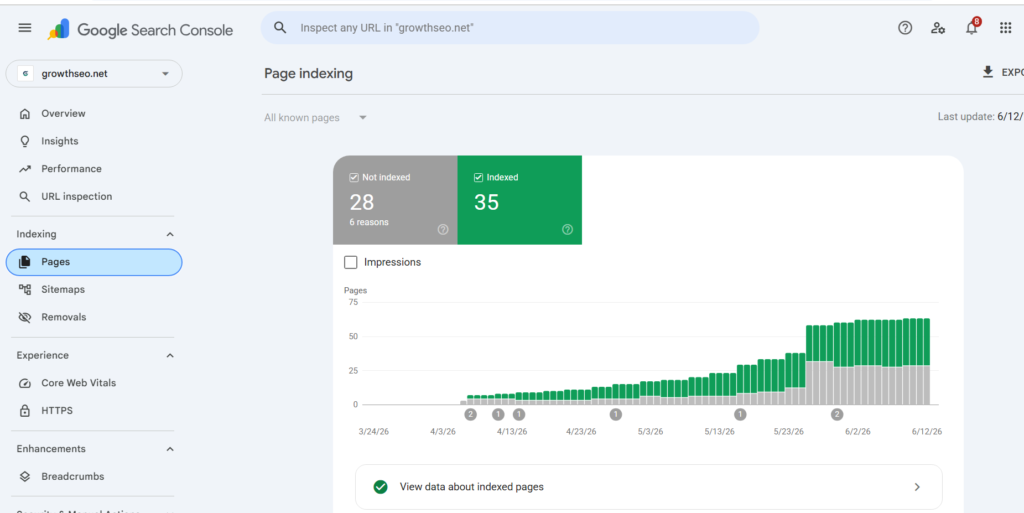
Search Console is as close as you’ll get to seeing your site the way Google does, and it’s free. Three reports do most of the work.
The Page Indexing Report
A big “Not indexed” number looks scary, but it isn’t a penalty. Lots of those URLs should be there: Admin pages, thank-you pages, product views that only you filter out from the index.
If you are wondering if you have any important pages on that list, that is the question. Export it, sort by page type and then filter URLs that are relevant to your business from those you’re happy to overlook.
Two statuses trip people up more than any others:
- Discovered – currently not indexed: Google is aware that the webpage is there, but it hasn’t been indexed. This can indicate poor site structure, too slow of a server, or insufficient internal linking.
- Crawled – currently not indexed: Google retrieved the page and decided to not retain it. Generally, it means that there is little content, duplication or added value.
The URL Inspection Tool
Enter any URL and Search Console will let you know if it’s been indexed, how long ago it was indexed, which Google canonical it chose, and if there are any problems indexing it. Once you have made a correction, perform a “live test” to ensure Google is able to see the corrected page.
The Crawl Stats Report
You’ll find it under Settings. It shows how often Googlebot visits, how fast your server responds, and which response codes it gets. If crawling has dropped off or server errors are spiking, this is where you’ll see it first.
The Most Common Crawl Errors and How to Fix Them
404 and Soft 404 Errors
A 404 means the page no longer exists. That isn’t automatically bad. A clean 404 or a clean 410 is OK if there wasn’t any traffic or backlinks from an old event page from 2021.
The problems begin when some important thing indicates the correct URL is missing: an internal link, a sitemap listing, an ad campaign, or another site. What’s the real cause of the 404? The links leading to it are.
A soft 404 is trickier. A visitor sees nothing on the page or the “not found” page but the server returns a 200 (OK) status. These are common examples of empty pages, like category pages, or accidental indexing, like search results, and thin pages, like placeholders. You can also set up each page that is deleted to be redirected to the homepage as a soft 404.
You have three options:
- Add real, useful content to the page.
- 301 redirect it to a truly appropriate page.
- Return a proper 404 or 410 and remove it from your sitemap.
For broken links in general, either fix the link, restore the page, or redirect to the closest match. On WordPress, plugins such as Redirection make this simple. On larger sites, handling redirects in .htaccess or your Nginx config gives you more control and better performance.
A basic permanent redirect in Apache looks like this:
Redirect 301 /old-page/ https://www.example.com/new-page/And in Nginx:
location = /old-page/ {
  return 301 https://www.example.com/new-page/;
}
5xx Server Errors
A 404 affects one page. A 5xx error (500, 502, 503, 504) means your server failed. A 429 rate-limit response sends a similar message: come back later.
A few stray 5xx errors won’t hurt you. A steady pattern will. If your server keeps failing, Google gradually crawls the site less often, and recovery can be slow.
To investigate:
- Compare the dates of server errors in Search Console with dips in traffic or rankings.
- Look at your hosting plan. Cheaper tiers often can’t handle Googlebot and real visitors at the same time.
- Add server-side caching, or upgrade your hosting if the errors persist.
Redirect Loops and Chains
A loop happens when page A redirects to B and B redirects back to A. Browsers show an error, and Googlebot gives up.
A chain is a series of hops before the final page (A to B to C to D). It’s less severe, but it wastes crawl time and slows users down. Point every old URL straight at its final destination, and make sure that destination returns a clean 200. Screaming Frog, Ahrefs Site Audit, and Semrush can all list your redirects so you can flatten them.
301 vs. 302 Redirects
Use a 301 for permanent moves and a 302 for temporary ones. The difference is about intent: a 301 tells Google the new URL should replace the old one in the index, while a 302 says the original URL will come back.
You may have read that 302s don’t pass link equity. Google has said that isn’t the case, and that all 3xx redirects can pass PageRank. What changes is which URL Google chooses to show in results. If the move is permanent, use a 301 so there’s no ambiguity.
Robots.txt and Noindex: Are You Blocking Google by Accident?
This is one of the most painful mistakes in technical SEO, and it usually happens during a migration, a plugin update, or a server change.
Check Your robots.txt
The file lives at the root of your domain (for example, yoursite.com/robots.txt) and tells crawlers where they can and can’t go. One stray line can block everything:
User-agent: *
Disallow: /
In Search Console, open Settings → robots.txt to see how Google last fetched the file and whether it found any problems. Use the URL Inspection tool to confirm whether a specific page is blocked.
Also check that you aren’t blocking CSS or JavaScript files. Google needs them to render your pages. If it can’t load them, it sees a stripped-down version of your site.
Misplaced Noindex Tags
A noindex directive tells Google not to keep a page in its index:
<meta name="robots" content="noindex">It’s useful for staging sites, admin screens, and thank-you pages. It’s a disaster on a page you want to rank. Some CMS plugins and page builders apply noindex at the template level, which can quietly hide an entire section of your site.
The same instruction can also arrive as an X-Robots-Tag HTTP header, so check both places.
One classic mistake: if a URL is blocked in robots.txt, Google can’t crawl it, so it never sees the noindex tag. The page may stay in the index. To remove a page, let Google crawl it and see the noindex.
XML Sitemaps
A sitemap is a list of the pages you want Google to know about. It helps with discovery, but only if it’s accurate.
What Belongs in a Sitemap
Include only canonical, indexable URLs that return a 200 status. Leave out redirected, noindexed, blocked, duplicate, and broken pages.
The usual problem is a plugin-generated sitemap that nobody checks again. Over time it fills up with redirects, 404s, and noindexed pages, which sends Google mixed signals. Review it after every migration, redesign, or major CMS update.
A minimal entry looks like this:
<url>
  <loc>https://www.example.com/crawl-errors-guide/</loc>
  <lastmod>2026-10-21</lastmod>
</url>
Keep <lastmod> accurate. Update it only when the page has changed in a meaningful way.
Monitoring in Search Console
Submit the sitemap in the Sitemaps report, then watch the gap between submitted and indexed URLs. If it keeps widening, look for duplicate content, canonical conflicts, or quality problems.
Internal Linking
Google finds and prioritizes pages by following links. Pages that are well linked get crawled more often. Pages that are buried or unlinked get ignored.
It’s also one of the quickest wins. Sometimes a handful of good internal links to a neglected page does more than months of rewriting.
Check link depth. Count how many clicks it takes to reach a page from the homepage. Pages more than three or four clicks deep may get little crawl attention. Bring important pages closer to the surface by linking to them from your navigation and your strongest content.
Find orphan pages. An orphan page has no internal links pointing to it. To find them, crawl your site with Screaming Frog or a similar tool, then compare that list against the URLs in your sitemap and Search Console. Anything that appears there but not in the crawl is an orphan. Link to the ones worth keeping.
Duplicate Content and Canonical Conflicts
If you see “Duplicate, Google chose different canonical than user” in Search Console, Google disagrees with the canonical tag you set. That usually happens when:
- Several URLs (parameters, trailing slashes, HTTP vs. HTTPS, www vs. non-www) show the same content.
- Your canonical tags point to a page that’s redirected, blocked, or noindexed.
- Your internal links and sitemap favor a different version than your canonical tag.
Pick one preferred URL for each page and make everything agree: the canonical tag, internal links, redirects, and sitemap.
JavaScript Rendering Problems
If your content only appears after JavaScript runs in the browser, Google has to render the page before it can see that content. Rendering can be delayed, and it can fail.
To check, use the URL Inspection tool’s live test and look at the rendered HTML and screenshot. If key text or links are missing, consider server-side rendering or pre-rendering, and make sure your important links are real <a href> elements.
Crawl Budget
Crawl budget is the number of pages Google will crawl on your site in a given period. On small sites with a few hundred pages, it’s rarely an issue. On large sites, it matters.
The biggest wasters are low-value URLs: endless parameter combinations, faceted navigation, session IDs, and near-duplicate paginated pages. Each visit spent on one of those is a visit not spent on your new or updated content.
To reduce the waste:
- Use canonical tags to consolidate parameter variations.
- Block clearly worthless URL patterns in robots.txt, but only after confirming they really are worthless.
- Prune thin, outdated pages.
- Fix errors on important pages first, then deal with the noise.
Prioritize. Don’t spend three days on orphaned posts from 2015 while your product pages are throwing 5xx errors.
On very large sites, server log analysis shows exactly what Googlebot is requesting, which is more detail than Search Console gives you.
Mobile-First Indexing
Google primarily uses the mobile version of your site for indexing and ranking, and the transition was completed for nearly all sites in 2024. If your mobile page has less content or fewer links than the desktop page, Google is indexing the lesser version.
Make sure mobile and desktop match in content, internal links, structured data, and metadata. If you run separate mobile URLs, check that the same links appear on both.
Google retired its Mobile-Friendly Test, so use the URL Inspection tool’s live test, Lighthouse, or Chrome DevTools device mode to see what the mobile version actually renders.
A Quick Checklist: Why Isn’t My Page Indexed?
Work through these in order:
- Does the URL load? It should return a 200 status with no redirect chain.
- Is it blocked? Check robots.txt, the meta robots tag, and the
X-Robots-Tagheader. - What does URL Inspection say? Note the status, last crawl date, and Google’s chosen canonical.
- Is it in your sitemap? It should be, with the correct canonical URL.
- Does it have internal links? Link to it from relevant, well-crawled pages.
- Can Google see the content? Check the rendered HTML for JavaScript issues.
- Is the content worth indexing? Thin, duplicated, or generic pages often get skipped. Add depth, original information, and clear purpose.
- Is the server healthy? Look at the Crawl Stats report for errors and slow responses.
Keeping Your Crawl Health in Shape
This isn’t a one-time job. URLs change, plugins update, content gets added and removed, and any of that can introduce new problems.
A simple routine works for most sites:
- Weekly: check the Page Indexing report.
- Monthly: review Core Web Vitals and the Crawl Stats report.
- Quarterly: run a full crawl with Screaming Frog or Semrush.
Signs that things are improving include fewer redirect chains, fewer internal 4xx errors, fewer duplicate exclusions, a narrower gap between submitted and indexed URLs, and growing impressions on your priority pages.
Conclusion
Crawl and indexing problems aren’t limited to huge sites. They show up everywhere, and they quietly cost you traffic. The good news is that almost all of them have straightforward fixes: clean up redirects, correct your robots.txt and noindex tags, tidy the sitemap, and link to the pages that matter.
Start with whatever blocks your most valuable pages, then build a routine so problems get caught early. A technically healthy site is also better placed to earn google rich results when you add the right structured data.
FAQs
1. How long does it take for Google to recrawl a page after I fix a crawl error?
Google can recrawl fixed URLs in a few days or several weeks. The timeline depends on page importance, crawl frequency, server stability, internal links, and sitemap quality. Using the URL Inspection tool in Google Search Console to request indexing after making fixes can help speed up the process.
2. Is a high number of excluded URLs in Google Search Console a sign of a penalty?
No — a high excluded URL count is not automatically a problem. A high number of excluded URLs is not a penalty by itself. It becomes a problem when Google can’t crawl or index the pages you actually care about — service pages, product pages, location pages, etc. Focus on whether your high-value pages are being indexed correctly, not on the raw excluded count.
3. Should I use a 301 or 302 redirect when moving a page permanently?
Always use a 301 redirect for permanent moves. A 301 passes full link equity and signals to Google that the old URL has been permanently replaced. 302 redirects are for temporary situations only and do not transfer ranking signals with the same strength.
4. Why is my page crawled but not indexed?
Fixing indexing errors requires improving page value, clarity, and signals — not just requesting reindexing. “Crawled – currently not indexed” typically means Google found thin content, duplicate signals, or insufficient quality indicators. Improve the page’s depth, add stronger internal links, and eliminate any duplication issues before re-requesting indexing.
5. How do I identify orphan pages on my website?
Run a site crawl using a tool like Screaming Frog or Ahrefs, export your complete list of discovered URLs, and cross-reference it against your Google Search Console indexed pages. Any page that appears in Search Console but has zero internal links from your crawled site architecture qualifies as an orphan page that needs to be properly linked.