You already know how frustrating it can be when you spend hours working on a page you are proud of, optimize the content and meta tags, hit publish, and then it’s never seen by the “lights of Google. You’ve experienced crawl and indexing issues before when you’ve spent hours working on a page that you are proud of, optimize it and the meta tags, and you hit publish and it’s never seen by the “lights of Google. It can be like laying out a wonderful storefront only for Google’s delivery truck to not be able to locate your street. Having content, having effort, but none of them matters if it’s not found, read and stored by the search engines. These crawling issues can hinder your website’s ability to be fully indexed, potentially affecting its search engine visibility and ranking. It has been found that over 20% of the standard site’s pages have crawl issues that can lead to a decrease in organic traffic and missed business opportunities. That stat should wake every site owner up.
Google has become more clever, more discriminating and, yes, less patient with what it considers a “technically broken” site. This guide will be your step-by-step, hands-on playbook for diagnosing all crawl error types, understanding why you might not have a successful index even if you are successful in crawling, and building a technically sound website which Googlebot will love to visit. The contents of this article can be applied to any blog, whether it’s a small or large one, and whether you’re blogging or you have an ecommerce store – and the fixes are possible.
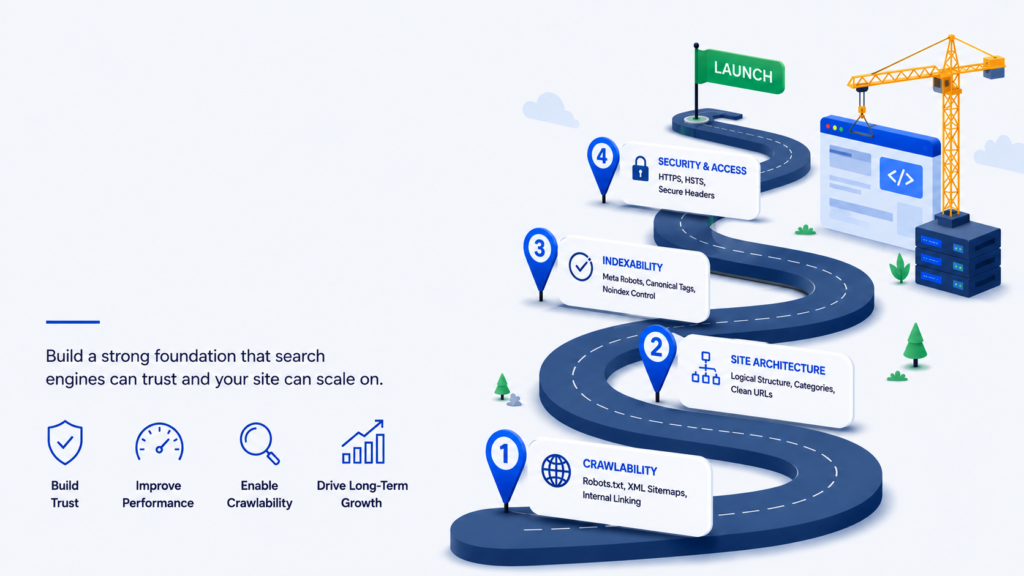
Before diving into specific fixes, it’s worth completing a technical SEO audit checklist to uncover the root causes of crawl and indexing problems. A thorough audit helps identify issues such as server errors, broken internal links, redirect chains, robots.txt misconfigurations, XML sitemap errors, duplicate content, and pages blocked from indexing. Addressing these technical issues early creates a solid foundation for better crawlability, faster indexing, and improved organic search performance, making the troubleshooting steps in this guide far more effective.
Table of Contents
- What Are Crawl Errors and Why Do They Matter?
- The Difference Between Crawling and Indexing
- How Crawl Errors Silently Damage Your SEO
- The Most Common Crawl Errors and How to Fix Each One
- Robots.txt and Noindex — Are You Accidentally Blocking Google?
- XML Sitemaps — The Roadmap Google Actually Follows
- Internal Linking — The Hidden Engine of Indexing
- Crawl Budget — Managing Google’s Time on Your Site
- Mobile-First Indexing and Its Impact on Crawlability
- Monitoring and Maintaining a Healthy Crawl Profile Long-Term
- Conclusion
- FAQs
What Are Crawl Errors and Why Do They Matter?
I want to make sure we’re on the same page before we start pulling wrenches. Crawl errors happen when Googlebot, Google’s spider program, attempts to reach a page on your website, but encounters something that prevents it. It may be that there was a broken URL, dismal configuration, a rogue robots.txt rule, a dozen other technical gremlins, and more. Typically, there are two types of crawl errors: site errors and URL errors. Site errors affect your site overall (DNS failures, server timeouts, etc), whereas URL errors affect a page (404s, redirect issues, etc).
Googlebot is like a hardworking but impatient librarian. It appears at your website with a list of pages to catalogue. When it continues to hit locked doors, broken staircases, and empty rooms, it begins spending less time at your site and moves to a higher ranking site that is more well-maintained. Technical SEO is the foundation of all successful websites, and it’s often overlooked. It makes sure that your site not only looks good to visitors, but is easy to access and easy to understand for search engines such as Google and Bing. Even the best technology still fails to show through when a technical base is weak.
The Difference Between Crawling and Indexing
Here’s something that trips up even experienced SEOs: crawling and indexing are not the same thing, and confusing the two leads to completely wrong diagnoses. Crawling is the act of Google visiting your page and downloading its content. Indexing is the separate decision Google makes about whether that content deserves a spot in its database. Googlebot crawls pages to collect data, but indexing only happens after evaluation. During indexing, Google checks content quality, duplication, render output, and relevance. A page can be crawled many times without ever being indexed.
This distinction matters enormously when you’re troubleshooting. Technical access problem is Google can’t access your page, there is a physical blockage. However, if Google bots find it but don’t index it then it’s back to content, signals, and value. Google will crawl more URLs in 2026 than it indexes, to save resources. SEOs must stop assuming crawl activity means success. Log an increase in crawl activity and it feels good, but it’s just the beginning.
How Crawl Errors Silently Damage Your SEO
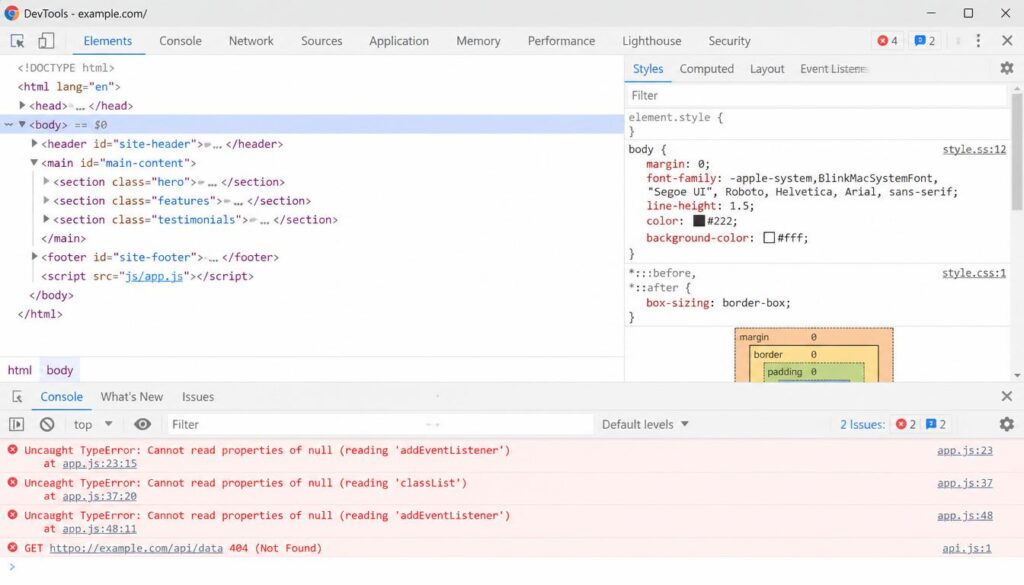
The insidious thing about crawl errors is how quietly they operate. You won’t necessarily see a sudden traffic cliff — instead, you’ll watch rankings slowly soften, new pages never gain traction, and your site’s authority gradually erode. A slow server doesn’t merely hurt user experience. It also burns through crawl budgets, delays indexation, and ultimately impacts rankings. Duplicate content issues don’t exist in isolation. They often stem from parameter handling problems, weak canonicalization, or a poor URL structure that creates multiple access paths to the same content. Problem after problem, and in no time at all, you’re running into a whole host of related technical difficulties instead of a problem you can fix.
Using Google Search Console to Diagnose Crawl Problems
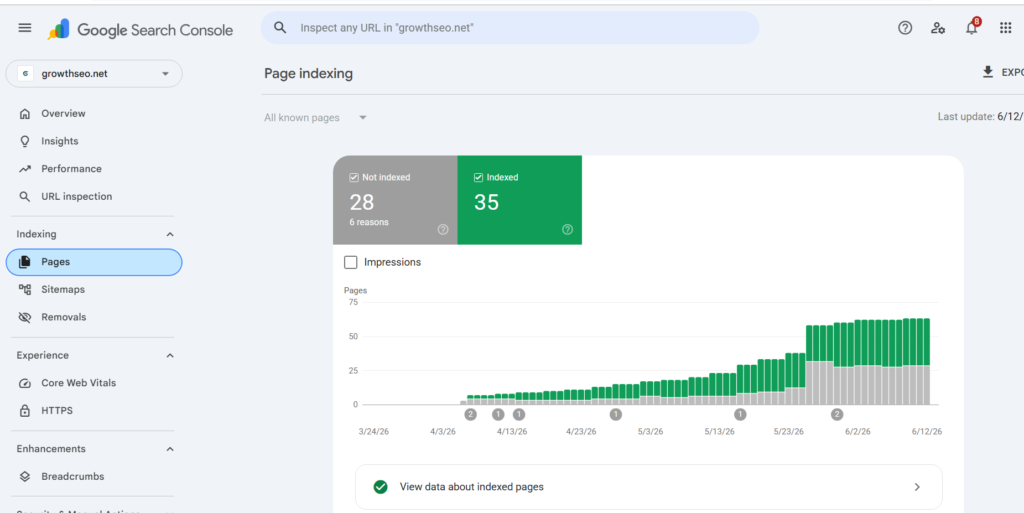
Google Search Console is your best, most direct and authoritative glimpse into Google’s view of your site. This is the closest to Googlebot’s real experience you’ll find with any third-party tool and the info is from the source. The good news? It’s free. The better news? Once you understand the key reports, diagnosing crawl issues becomes significantly less intimidating.
Navigating the Page Indexing Report
The critical mindset shift here is to stop panicking at a high excluded URL count. A high number of excluded URLs is not a penalty by itself. It becomes a problem when Google can’t crawl or index the pages you actually care about — service pages, product pages, location pages, etc. Export the data, sort by page type, and identify which excluded URLs represent genuine business value versus intentional exclusions like admin pages, thank-you pages, or filtered product variants that you never wanted indexed anyway. Sorting signals from noise is the real skill here.
URL Inspection Tool — Your Diagnostic Flashlight
The URL Inspection Tool inside Search Console is your scalpel for individual URL diagnosis. Paste any URL from your site, hit enter, and Google will tell you whether it’s indexed, the last crawl date, what canonical URL was detected, whether mobile-friendliness was confirmed, and crucially — whether there are any specific crawl or indexing blockers active. Run it through URL Inspection to see what Google can crawl and whether indexing is allowed. This is particularly powerful when you’ve just made fixes and want to validate whether Google now sees the corrected version of a page.
The Most Common Crawl Errors and How to Fix Each One
Now we get into the practical meat of the guide. There are several crawl error types that show up repeatedly across websites of every size. Understanding what each one means — and how to resolve it cleanly — is the foundation of any serious technical SEO practice.
Fixing 404 and Soft 404 Errors
A 404 error means a page simply doesn’t exist anymore — the server returns a “Not Found” response to anyone who requests it. These occur constantly during site migrations, URL restructuring, blog post deletions, and product removals.The 404 isn’t always a bad thing for SEO. For example, if there is no traffic or backlinks or replacement of a discontinued event page from 2021, then it should get a clean 404 or 410. Now, if that’s the case, an important internal link, XML sitemap entry, paid campaign link, or external referring domain still points to that missing address, then a problem begins. The 404 itself isn’t the criminal — broken links pointing to that 404 are.
However, a soft 404 is more complicated. A soft 404 is a page that appears “404” but actually returns a 200 (OK) status code, misleading search engines about its real status. Google visits a page and gets nothing useful but the server returns “everything’s fine”. This happens frequently with empty category pages, search results pages indexed accidentally, or thin placeholder pages. The fix depends on the situation: either add genuine, substantive content to make the page worth indexing, redirect it to a relevant page, or return a proper 404/410 status and remove it from your sitemap.
To fix broken links, you can either update the incorrect URLs, restore the missing pages, or add 301 redirects to point to the most relevant existing pages. Regularly auditing your site for broken links can prevent user frustration and improve crawl efficiency. For WordPress sites, plugins like Redirection or Yoast SEO Premium simplify this process considerably. For larger sites, managing redirects directly in your .htaccess file or Nginx configuration gives you the most control and performance.
Resolving 5xx Server Errors
404 errors are page level errors while 5xx errors (500, 502, 503, 504) are server level emergencies. It indicates that something is amiss on your server’s end when Googlebot visits, and that Googlebot had to come away empty-handed. Server errors like 5xx status codes or 429 rate-limiting responses tell Googlebot to come back later — except “later” might mean weeks or months in crawl budget terms. If your server is regularly throwing 5xx responses, Google will progressively reduce how often it attempts to crawl your site — a compounding problem that’s painful to recover from.
A few random 5xx errors won’t significantly hurt your SEO, but consistent patterns will. Check the Page Indexing report for URLs that get hit repeatedly or server error spikes that align with traffic drops. The first diagnostic step is comparing your server error timeline against your traffic and ranking charts. If you see a correlation, check your hosting plan — lower-cost hosting tiers often have insufficient CPU and memory to handle simultaneous Googlebot requests alongside regular user traffic. Upgrading your hosting, implementing server-side caching, or switching to a more robust infrastructure can dramatically stabilize your crawl profile.
Untangling Redirect Loops and Chains
Redirects, when used correctly, are essential tools. When they’re not configured properly, they’re nightmares. Redirect loop: Page A redirects to Page B, Page B redirects back to Page A and so on, building up a loop which makes Googlebot lose interest. A URL that redirects from A to B to A will make it confusing for users and for bots – and create crawl problems. To remedy this, check your redirect chains and make sure that each old URL will be redirected to its final destination. You can keep link equity and always get a search engine to the right version of your content with proper redirect management.
Redirect chains — where multiple hops occur before reaching the final destination — are also problematic. Every extra hop dilutes link equity and wastes crawl time. Direct redirects (old URL to final destination) are the best redirects to follow, and have no intermediate steps. Use tools such as Screaming Frog, Ahrefs Site Audit or Semrush’s technical audit tool to audit your site redirects on a regular basis. Trace all redirects, simplify them down to one redirect and make sure that the final destination responds with a clean 200 status.
When to Use 301 vs 302 Redirects
Many people don’t realize that there is a difference between a 301 redirect (permanent) and a 302 redirect (temporary). A 301 informs Google, “This page has been permanently moved — pass to the new location all of its importance and authority. A 302 states: “This is a temporary redirect — the original URL’s signals must remain at their original locations. If the page is coming back, use 302 redirects, but don’t overuse 302 redirects for they are not as effective in transferring link equity. One of the most frequent errors humans make is to use 302 redirects when 301s can be used instead. One of the most common pitfalls when humans use 302 redirects instead of 301s is that links are left in a state of limbo, unable to receive their link authority as it should.
Robots.txt and Noindex — Are You Accidentally Blocking Google?
Few technical SEO disasters are as painful as discovering that you’ve been accidentally blocking Googlebot from crawling your most important pages. And yet, it happens surprisingly often — usually during site migrations, plugin updates, or server configuration changes that inadvertently modify how your site communicates with bots.
Auditing Your Robots.txt File
Your robots.txtfile lives at the root of your domain (e.g., yoursite.com/robots.txt) and tells crawlers which sections of your site they’re allowed or forbidden to access. A single misplaced Disallow: / directive can block your entire website from Google. Your robots.txt file acts like the front door bouncer for search engines. Misconfigurations can accidentally block critical pages. Start with Google Search Console’s robots.txt tester. It’ll show you exactly which URLs are getting blocked and by which directive. This should be one of the first checks in any technical SEO audit — it’s simple, fast, and occasionally reveals catastrophic blockers hiding in plain sight.
Also be aware that blocking CSS or JavaScript resources in robots.txt is a common mistake. Google needs to render your pages to fully understand their content, and if it can’t load your stylesheets or JavaScript files, it essentially sees a broken, stripped-down version of your site — which significantly impacts how it evaluates and ranks your content. Always ensure your key rendering resources are accessible to Googlebot.
Misplaced Noindex Tags — A Silent Rankings Killer
The noindex meta tag is a powerful instruction that tells Google: “Do not store this page in your index.” It’s genuinely useful for pages like staging environments, admin dashboards, thank-you pages, and duplicate content. But when it lands on a page you want ranked, it becomes a silent rankings killer. If a meta robots tag or X-Robots-Tag header says “don’t index,” and that’s intentional, leave it. If it should be indexed, remove noindex and confirm it’s not blocked elsewhere. The tricky part is that some CMS plugins and page builder tools can add noindex tags at the template level, accidentally applying them to entire content sections rather than individual pages.
XML Sitemaps — The Roadmap Google Actually Follows
An XML sitemap is sort of like a table of contents that you give directly to Google, informing it that “here are the pages I want you to know about and prioritize. With good implementation, it can help boost discovery and ensure that your most critical pages can be crawled regularly. It’s a bad way to do it and actively misguides Google’s resources.
What Belongs in Your Sitemap (and What Doesn’t)
Sitemaps are used to signal Google about canonical, indexable URLs, but should not include blocked, redirected, noindex, duplicate, or broken pages. Periodically update 200 status sitemap map entries following every migration, cleaning or CMS update. This is where many site owners go wrong — they generate a sitemap automatically through a plugin and never revisit it. The result is a sitemap full of redirected URLs, noindexed pages, and 404s, which sends conflicting signals to Google and wastes crawl budget on pages you don’t actually want indexed.
A well-maintained sitemap should act as your indexing wishlist — only include pages you genuinely want Google to prioritize, all returning clean 200 responses, all pointing to their canonical URL versions. Including URLs in your sitemaps that you don’t want to appear in Search can waste your crawl budget on pages that you don’t want indexed. Think of it as spring-cleaning your sitemap every time you conduct a significant site change, and you’ll stay well ahead of the curve.
Submitting and Monitoring Sitemaps in Search Console
Use the <lastmod> tag in sitemaps to indicate when an indexed URL has been updated. This small addition communicates to Google that a page has been freshened up and deserves a fresh crawl, which is particularly valuable for content-heavy sites that regularly update existing articles. After submitting your sitemap through Search Console’s Sitemaps report, monitor the ratio of “Submitted” versus “Indexed” URLs over time. A widening gap between submitted and indexed pages is a signal worth investigating — it often points to quality issues, duplicate content problems, or canonical conflicts that need attention.
Internal Linking — The Hidden Engine of Indexing
If robots.txt is your website’s bouncer and sitemaps are your tour guide, then internal links are the roads Googlebot actually travels on. The architecture of your internal linking structure directly determines which pages get crawled frequently, which get treated as high-priority, and which get left on a shelf never to be found.
How Internal Links Signal Page Importance to Google
Internal links guide Google’s crawl paths by showing which pages matter most. Google follows links, not intentions. Pages with strong internal signals are crawled more often and evaluated earlier for indexing. Pages without links, or buried deep, are treated as low priority. Fixing internal linking is one of the fastest ways to improve indexing without changing content or infrastructure. This is profound when you think about it — you don’t need to rebuild your entire website to dramatically improve indexing. Sometimes, adding five strong internal links pointing to an important but neglected page achieves what months of content optimization couldn’t.
When auditing your internal links, focus on what SEOs call “link depth” — how many clicks it takes to reach a given page from your homepage. Pages buried more than three to four clicks deep are at serious risk of receiving minimal crawl attention, regardless of how valuable their content is. Flatten your site architecture by surfacing important pages higher in your navigation and linking to them from your most authoritative, frequently crawled content.
Fixing Orphan Pages That Google Will Never Find
An orphan page is a page that exists on your site but has absolutely no internal links pointing to it. From Google’s perspective, it might as well not exist — because without a link pathway, the only way Googlebot would ever find it is through an external backlink or a sitemap entry. Leaving orphan pages with no internal links is one of the most frequent errors that silently impact SEO performance. Run a site crawl using Screaming Frog or a similar tool, export your list of indexed pages, and cross-reference it against pages that receive zero internal links. Every orphan page you reconnect is a potential ranking recovery waiting to happen.
Crawl Budget — Managing Google’s Time on Your Site
Crawl budget refers to the number of pages Google is willing and able to crawl on your site within a given timeframe. For small sites (under a few hundred pages), crawl budget is rarely a limiting factor — Google will crawl everything regularly anyway. For larger sites with thousands of pages, however, crawl budget becomes a genuine strategic resource that must be actively managed.
What Wastes Crawl Budget and How to Stop It
The biggest crawl budget killers are low-value pages that offer nothing unique — infinite parameter combinations, faceted navigation pages, session ID variants, and paginated listing pages that repeat similar product content with minor variations. Google’s crawling is limited by bandwidth, time, and availability of Googlebot instances. Every crawl visit wasted on a near-identical filtered product page is a visit not spent on your new service pages, fresh blog posts, or recently updated cornerstone content.
The practical solution involves a combination of tactics: use rel=”canonical” tags to consolidate duplicate parameter variations to a single preferred URL, disallow low-value URL patterns in robots.txt (but only after verifying those patterns are truly worthless), implement pagination signals correctly, and regularly prune your site of thin, outdated content that’s actively dragging down your site’s overall quality profile. Fix the issues that block valuable pages first, then reduce low-value URL noise that drains crawl attention. Prioritization is everything here — don’t spend three days fixing orphaned blog posts from 2015 when your product pages are throwing 5xx errors.
Mobile-First Indexing and Its Impact on Crawlability
Since July 2024, Google has fully committed to mobile-first indexing, meaning it primarily uses the mobile version of your website to determine how pages are crawled, rendered, and ranked. This isn’t a distant future consideration — it’s the current reality shaping every crawl decision Google makes. Google uses mobile-first indexing, meaning it primarily looks at the mobile version of your site for ranking and indexing. If your mobile site is incomplete or poorly optimized, it can hurt your visibility. Test your website using Google’s Mobile-Friendly Test tool. Make sure all content is visible and usable on smaller screens, and avoid intrusive pop-ups or poorly scaled images.
The implication that most site owners miss is about content parity. If your desktop version contains rich content, detailed product descriptions, and robust internal links — but your mobile version shows stripped-down content due to responsive design decisions — Google is indexing the inferior version. If your site uses separate HTML for mobile and desktop versions, provide the same set of links on the mobile version as you have on the desktop version. Limiting the links shown on the mobile version can slow down discovery of new pages. Audit your mobile rendering using Google’s Rich Results Test and the URL Inspection tool, paying close attention to whether all critical content loads and renders correctly on mobile.
Monitoring and Maintaining a Healthy Crawl Profile Long-Term
Fixing crawl errors isn’t a one-and-done project — it’s an ongoing commitment. Websites evolve constantly: content gets added and removed, URL structures change, plugins get updated, and server configurations shift. Any of these changes can introduce new crawl problems overnight. The sites with the healthiest long-term crawl profiles are those that have baked regular technical audits into their operational rhythm. Technical SEO isn’t a one-time fix. Regular audits help you catch and fix issues before they become major issues.
Build a monitoring cadence that makes sense for your site’s size and publication frequency. At minimum, check Google Search Console’s Page Indexing report weekly, review your Core Web Vitals monthly, and run a full technical crawl audit using a tool like Screaming Frog or Semrush every quarter. Track stability and focus signals: a reduction in low-value discovered URLs, fewer redirect chains and internal 4xx errors, fewer pages excluded for duplication, an improving gap between submitted and indexed URLs in your sitemap reports, and growing impressions and clicks on priority segments. These metrics tell you whether your crawl health is improving over time — and they catch regressions before they compound into ranking crises.
Conclusion
Crawl errors and indexing issues are not exotic, edge-case problems reserved for massive enterprise sites. They are everyday realities that affect websites of every size, and their consequences — invisible pages, stagnant rankings, and lost organic traffic — are very much real. The good news is that every problem covered in this guide has a concrete, actionable solution. From resolving 404s with targeted redirects, to cleaning your sitemap of noindexed URLs, to rebuilding your internal linking architecture, each fix is within reach.
The most important mindset shift you can make is viewing technical SEO not as a remediation task, but as a continuous discipline. Googlebot is visiting your site regularly, forming judgments about its health, reliability, and quality. The sites that earn Google’s trust — and the rankings that follow — are those that make Googlebot’s job as easy, efficient, and rewarding as possible. A technically healthy website is also better positioned to earn enhanced search features, including Google rich results, when supported by appropriate structured data. Start with your biggest blockers, build a maintenance routine, and watch your indexing improve month over month.
FAQs
1. How long does it take for Google to recrawl a page after I fix a crawl error?
Google can recrawl fixed URLs in a few days or several weeks. The timeline depends on page importance, crawl frequency, server stability, internal links, and sitemap quality. Using the URL Inspection tool in Google Search Console to request indexing after making fixes can help speed up the process.
2. Is a high number of excluded URLs in Google Search Console a sign of a penalty?
No — a high excluded URL count is not automatically a problem. A high number of excluded URLs is not a penalty by itself. It becomes a problem when Google can’t crawl or index the pages you actually care about — service pages, product pages, location pages, etc. Focus on whether your high-value pages are being indexed correctly, not on the raw excluded count.
3. Should I use a 301 or 302 redirect when moving a page permanently?
Always use a 301 redirect for permanent moves. A 301 passes full link equity and signals to Google that the old URL has been permanently replaced. 302 redirects are for temporary situations only and do not transfer ranking signals with the same strength.
4. Why is my page crawled but not indexed?
Fixing indexing errors requires improving page value, clarity, and signals — not just requesting reindexing. “Crawled – currently not indexed” typically means Google found thin content, duplicate signals, or insufficient quality indicators. Improve the page’s depth, add stronger internal links, and eliminate any duplication issues before re-requesting indexing.
5. How do I identify orphan pages on my website?
Run a site crawl using a tool like Screaming Frog or Ahrefs, export your complete list of discovered URLs, and cross-reference it against your Google Search Console indexed pages. Any page that appears in Search Console but has zero internal links from your crawled site architecture qualifies as an orphan page that needs to be properly linked.